

- What Is CPU Usage and Why Does It Spike on WordPress?
- Common Causes of Excessive CPU Usage on WordPress
- Automating Your WordPress Content
- How to Diagnose the Problem Before Fixing It
- See Your CPU Spike Before It Crashes Your Site
- What to Do About Excessive WordPress CPU Usage
- The Right Hosting Environment Matters
- In Summary
If you've ever logged into your hosting dashboard and found your CPU usage through the roof or worse, received a suspension warning from your host… You're not alone. Excessive CPU usage is one of the most common yet misunderstood problems WordPress site owners face. Pages start loading slowly, visitors bounce, and everything feels like it's running through wet concrete. The frustrating part is that there's no single culprit. It could be a plugin, a theme, bad bots hammering your server, or simply a hosting plan that can't keep up with your growth.
This guide breaks down exactly why WordPress sites consume excessive CPU, what you can do about it right now, and how tools like AutoQuill by PlusClouds can actually help you manage content-heavy sites more efficiently without adding unnecessary server load.
What Is CPU Usage and Why Does It Spike on WordPress?
CPU (Central Processing Unit) is the brain of your server. Every time someone visits your WordPress site, the server runs PHP code, queries the database, assembles the page, and sends it to the browser. All of that processing consumes CPU power. When too many of these operations happen simultaneously or when individual operations are inefficient, CPU usage spikes.
WordPress, by its very nature, is a dynamic system. Every page load can trigger dozens of database queries, plugin hooks, and PHP functions. Without proper optimization, this adds up fast. On shared hosting plans with limited CPU cores, even moderate traffic can push you to the edge.
Common Causes of Excessive CPU Usage on WordPress
Poorly optimized or excessive plugins are among the most common drivers of high CPU load. When you have multiple active plugins (especially ones that overlap in functionality or run background tasks on every page load) you're stacking processing costs with every visitor request. Some plugins perform complex database queries repeatedly without caching results, which compounds the problem.
Resource-heavy themes are another major factor. Themes loaded with sliders, animations, parallax effects, and advanced JavaScript might look impressive, but they force the server to work much harder to render each page. A lighter theme almost always translates to lower CPU usage and faster load times.
WordPress's built-in cron system, wp-cron, is frequently overlooked. It runs scheduled tasks like publishing posts and sending emails, but it's triggered on every site visit rather than on an actual timer. For busy sites, this means wp-cron can fire dozens or hundreds of times per hour, creating significant overhead. Malware can also exploit cron jobs to run hidden processes, making this a security concern as well.
Bad bots and automated traffic are another invisible drain. Bots that attempt to brute-force logins, scrape content, or probe for vulnerabilities generate a high volume of requests, each of which forces WordPress to execute PHP scripts and database queries. Malware infections can spawn their own processes; sending spam, participating in DDoS attacks, or simply consuming CPU for no legitimate purpose.
Outdated software is often underestimated. Older versions of WordPress core, plugins, and themes miss performance improvements that newer releases include. Running an old PHP version (anything below PHP 8.x) is particularly costly, as modern PHP is significantly faster and more memory-efficient than its predecessors.
Finally, the absence of caching is probably the single biggest amplifier of all other problems. Without caching, WordPress regenerates every page dynamically for every visitor. A page-level cache means most visitors receive a static HTML file instead, bypassing PHP execution and database queries entirely. The CPU savings can be dramatic.
Automating Your WordPress Content
While you're optimizing your server's performance, it's worth thinking about the tools running on top of it too. One common source of unnecessary admin-side load is the content publishing workflow itself, manual editing sessions, heavy page builder usage, repeated logins for scheduling posts.
AutoQuill, PlusClouds's AI content engine, takes that off your plate entirely. It writes SEO-optimized blog posts and publishes them directly to your WordPress site in under 60 seconds via a native plugin, no editor sessions, no copy-pasting, no manual scheduling. For WordPress site owners who publish regularly, it's one less reason to be logged into the backend at all.
You can try it free at plusclouds.com/us/community/auto-quill

How to Diagnose the Problem Before Fixing It
Before making changes, you need to know where the load is actually coming from. Your hosting control panel (cPanel, Plesk, or a cloud dashboard) typically shows CPU usage over time. Look for spikes and try to correlate them with specific times, traffic patterns, or scheduled tasks.
Query Monitor is a WordPress plugin that shows you database queries, PHP errors, and hook performance for each page load, it's invaluable for identifying slow queries tied to specific plugins. New Relic offers deeper application-level monitoring if you have access to server-level tools. Wordfence's traffic report can help you visualize bot traffic hitting your site in real time, though you should remove it afterward if it's not otherwise needed, as security scanners themselves can contribute to CPU load.
The classic diagnostic method still works well: disable all plugins, confirm the load drops, then reactivate them one by one until the spike returns. Whichever plugin triggers the spike is your culprit.
See Your CPU Spike Before It Crashes Your Site
Knowing that your WordPress site has a CPU problem is half the battle. Knowing exactly when it happened, which resource is responsible, and how close you are to hitting a limit, that's what separates reactive firefighting from proactive infrastructure management. The PlusClouds dashboard gives you all of that in one place.
The dashboard provides continuous, real-time visibility into every layer of your server stack so nothing hides between polling intervals. When your WordPress site starts spiking CPU at 2 AM because a cron job ran out of control, the panel has already logged it.
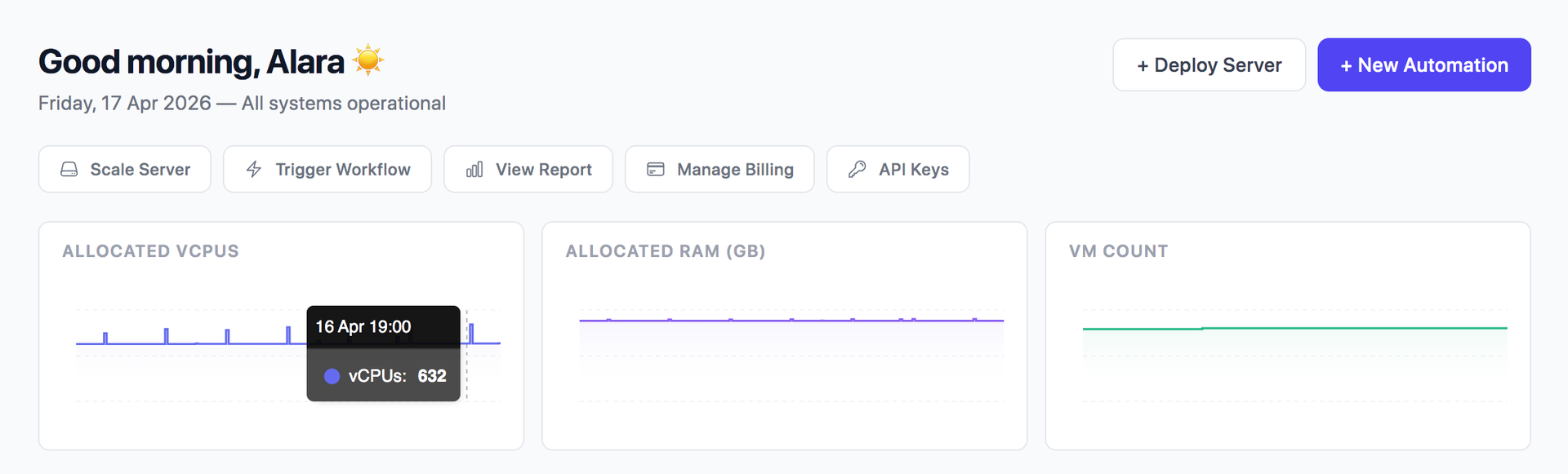
For WordPress site owners, this changes the entire diagnostic workflow. Instead of noticing sluggishness and guessing which plugin or cron job caused it, you open the PlusClouds dashboard and trace the CPU spike directly to its timestamp, then cross-reference it with your WordPress activity logs, access logs, or scheduled task history. The evidence is already there.
What to Do About Excessive WordPress CPU Usage
Install a full-page caching plugin and configure it properly. Plugins like FlyingPress, WP Rocket, or W3 Total Cache can serve static HTML copies of your pages, drastically reducing the PHP and database work required per visit. Pair this with a CDN like Cloudflare or QUIC.cloud to offload asset delivery and add an edge-level firewall against bad bots.
Replace or remove resource-intensive plugins. Audit every active plugin and ask whether it's genuinely necessary. If two plugins overlap in function, keep the lighter one. If a plugin is poorly maintained or hasn't been updated in over a year, look for a modern alternative.
Switch wp-cron to a real server-side cron job. By disabling WordPress's pseudo-cron and scheduling tasks at the system level instead, you eliminate the overhead of wp-cron firing on every page visit. Most hosting control panels let you configure this in a few minutes.
Keep everything updated. WordPress core, themes, and plugins should always run their latest stable versions. If you're on PHP 7.x or older, upgrading to PHP 8.x is one of the highest-impact, lowest-effort changes you can make.
Optimize your database regularly. Over time, WordPress accumulates post revisions, transient options, spam comments, and orphaned plugin data. WP-Optimize or similar tools can clean this up and reduce the work MySQL has to do on every query.
If you're on shared hosting and have done all of the above without relief, the problem may be structural. Shared hosting environments often severely limit CPU cores, and no amount of optimization will overcome an underpowered infrastructure. Moving to a VPS or a cloud platform with dedicated resources and ideally one using LiteSpeed servers, which handle significantly more concurrent requests than Apache, can reduce CPU consumption by 50% or more.
Block bad bots at the edge rather than at the application level. A CDN-level firewall that intercepts bot traffic before it reaches your server means WordPress never has to process those requests at all.
The Right Hosting Environment Matters
Even a perfectly optimized WordPress site will hit a ceiling if the underlying infrastructure can't support it. If your CPU usage spikes during normal traffic and you've already implemented caching, cleaned up plugins, and blocked bots, the issue is likely your hosting tier.
LiteSpeed-based hosting handles roughly twice the concurrent connections of Apache-based plans with lower CPU overhead. NVMe storage reduces the I/O latency that slows database queries. If you're scaling, a cloud environment with auto-scaling capabilities (where resources expand automatically during traffic surges rather than hitting a hard CPU ceiling) eliminates the risk of performance degradation during your most important moments.
In Summary
Excessive CPU usage on WordPress is almost never caused by just one thing. It's usually a combination of heavy plugins, inefficient themes, unoptimized cron jobs, bot traffic, missing caching, and an infrastructure that's reached its limits. The good news is that most of these issues are fixable with systematic diagnosis and targeted changes.